
How to Edit and Update Your NFC Tags
JP / EN
All NFC tags embedded in products purchased at the item shop® Official Shop can be configured and changed by you. By editing and updating your NFC tags, you can automate actions such as:
Open your favorite website
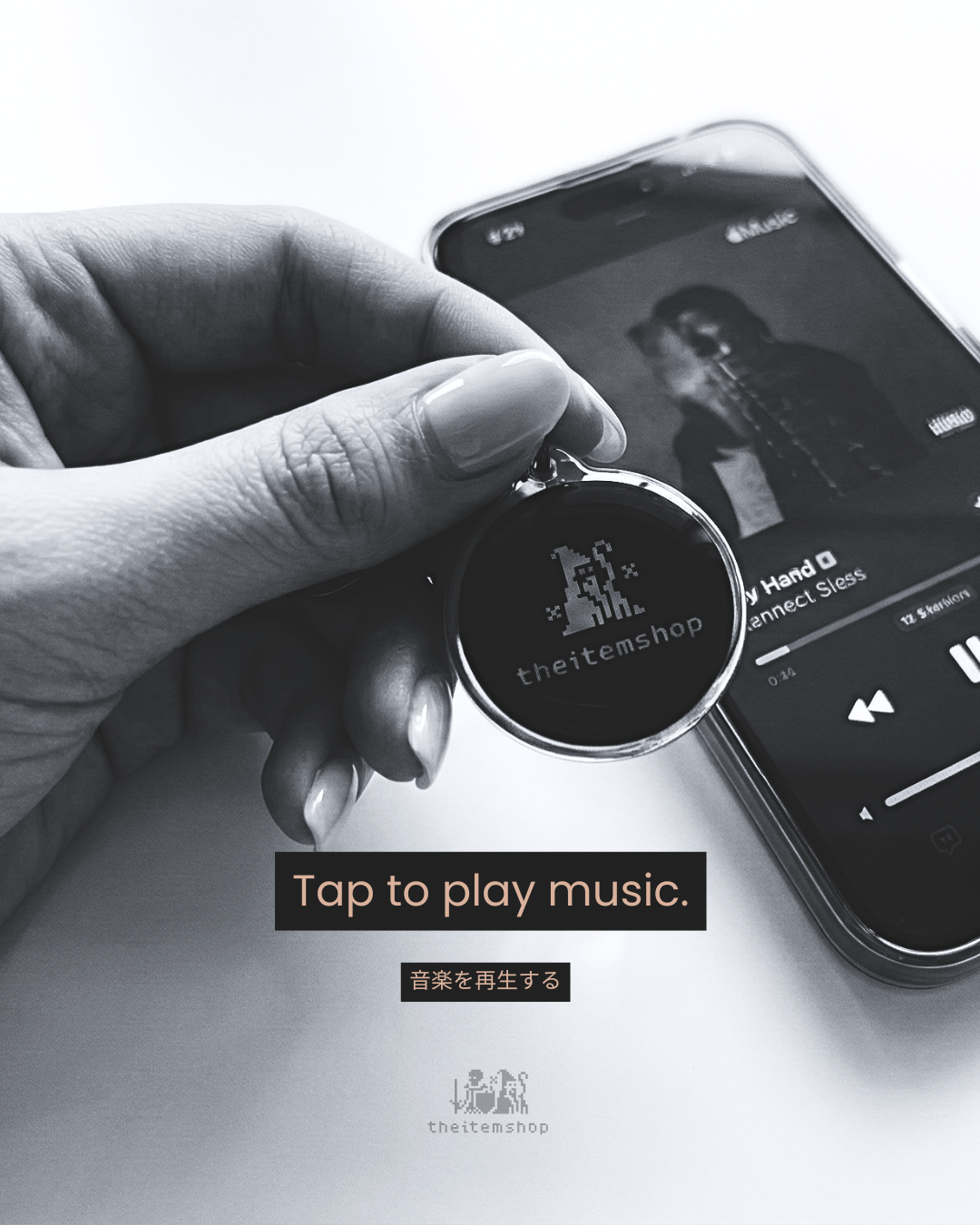
Launch music streaming apps
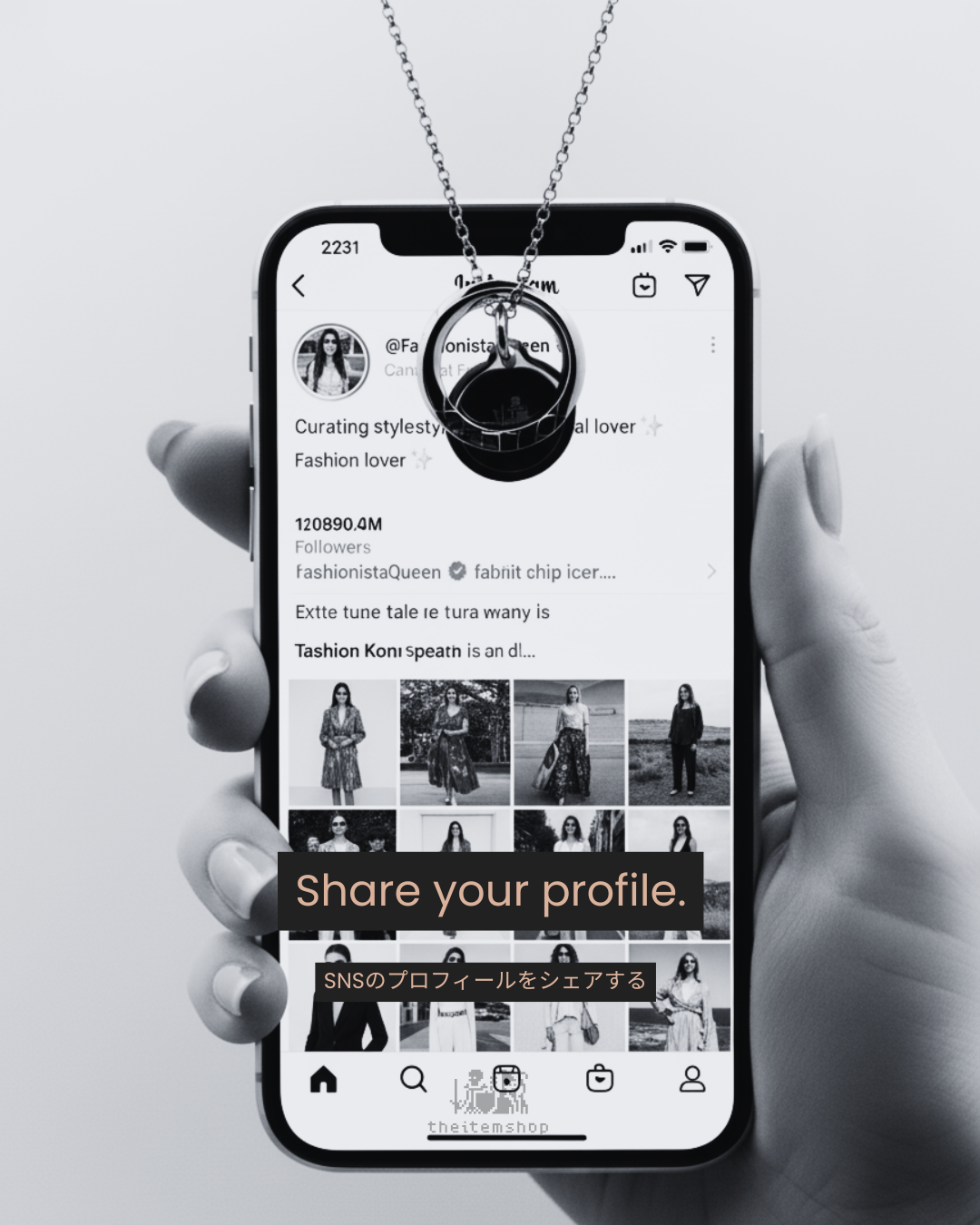
Link directly to your social profile
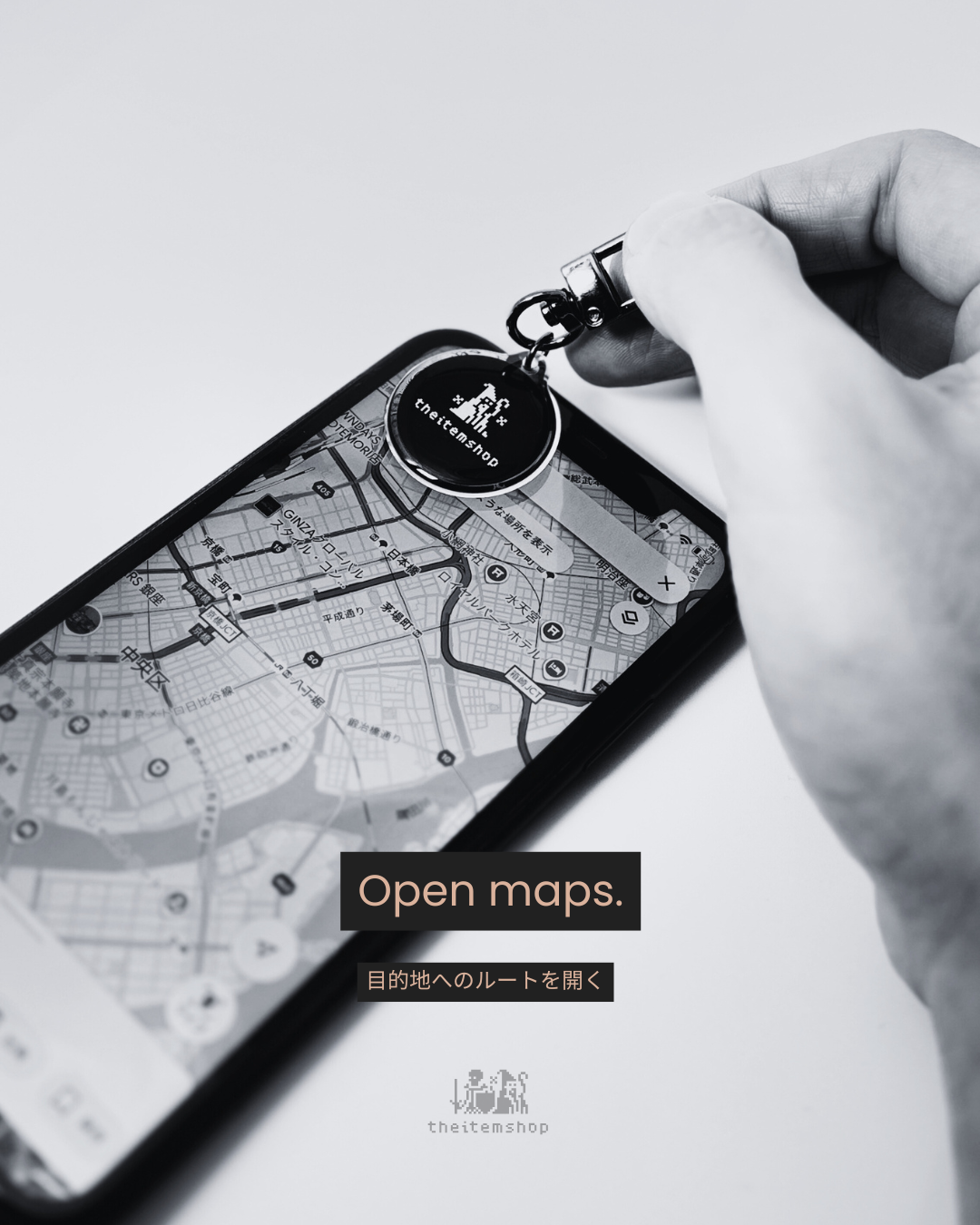
Start your car navigation app
Send an SMS message
You can go further with the Shortcuts app built into iPhone, or apps like Tasker on Android — running several actions at once, such as setting an alarm, turning off the lights and adjusting the air conditioning. Use the methods below as a starting point and find the setup that fits your life.
If you're on iPhone, we've made an official app for this: the item shop NFC EDITOR. We hope you'll try it.

Outline
What is an NFC Tag?
Writing on iPhone
Writing on Android
Deleting the URL
Troubleshooting
NFC (Near Field Communication) is a technology that allows communication between devices, such as smartphones, within about 4 cm. Information can be exchanged simply by holding devices close or lightly touching them.
An NFC tag is a small chip utilizing this technology, available in forms such as stickers and cards. Just hold your smartphone near it and a pre-set action runs automatically. NFC is already all around us, in transit cards (Suica, PASMO) and mobile payments (Apple Pay, Google Pay).
What is an NFC Tag?
Writing on iPhone
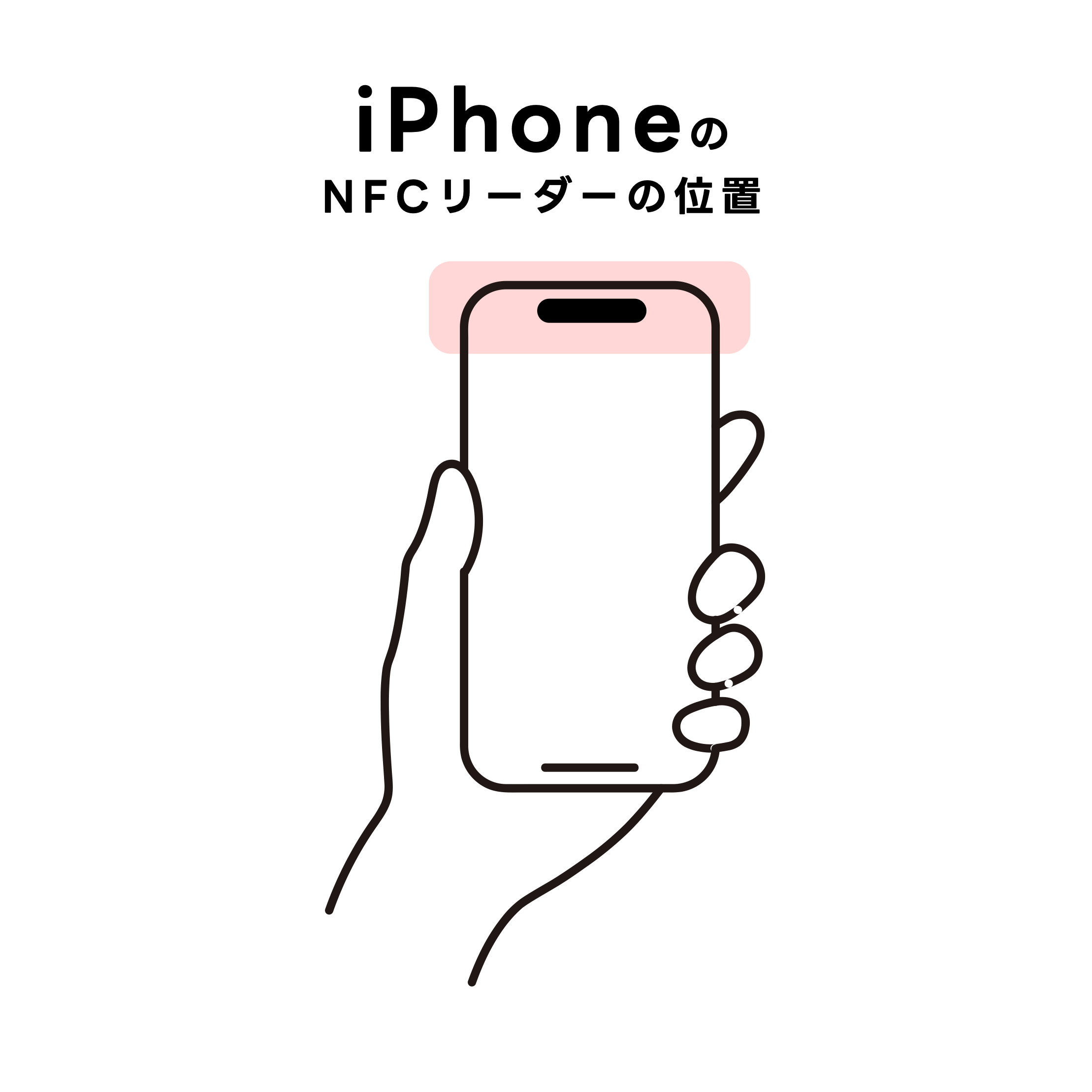
The NFC reader is typically near the top on iPhone.
The official app: the item shop NFC EDITOR
The official app for rewriting the NFC tag that comes inside the item shop® products, yourself.
What you need:
An NFC-equipped iPhone running iOS 16.6 or later
the item shop NFC EDITOR
Coming soon to the App Store. We'll post the link right here once it's live.
Writing procedure:
1. Open the app and choose WRITE at the bottom
2. Type a URL into the field under "Enter the URL you'd like to set on your NFC tag"
3. Press "WRITE"
4. Follow the prompt and bring the tag close to the top of your iPhone
5. You're done when "COMPLETED!" appears
For a screen-by-screen walkthrough, see How to use the app.
TAP & GROW — only in the official app
Write from the official app and your tag starts collecting taps from that moment. That's the record behind TAP & GROW, where your character grows the more you tap.
The tag does the counting, not the app, so the times you tap without opening the app are counted too.
More about TAP & GROW >
Advanced configuration using Shortcuts
By using the standard "Shortcuts" app on your iPhone, you can enable more complex automation triggered by the NFC tag, allowing you to set up actions across several apps. See Apple's official site for details.
About other NFC apps
You're free to rewrite the URL from other NFC apps — use whichever app you're used to. Note that the TAP & GROW record begins when you write from the official app.
Writing on Android
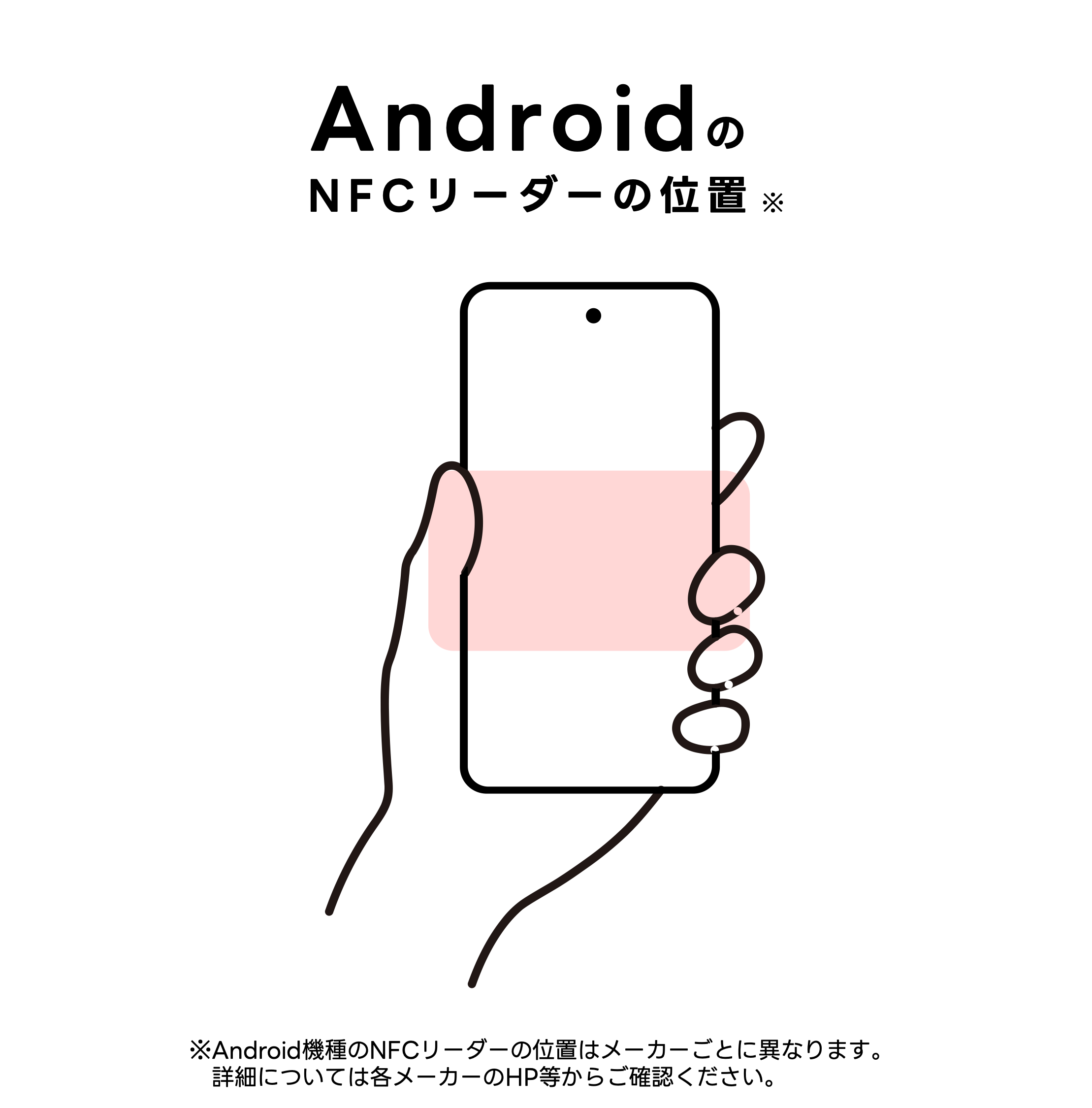
On most Android devices, the NFC reader is located around the center on the back.
The official Android app is coming soon.
What you need:
An NFC-compatible Android smartphone
Writing procedure:
1. Turn on NFC — Settings → Connected devices → NFC on
2. Get the app — Install "NFC Tools" from Google Play
3. Open the app — Select "Write" and specify the data type (URL, text, contact, Wi-Fi, and so on)
4. Write — Enter the information, hold the antenna area on the back of your phone to the tag, and wait for the completion message
Advanced utilization using apps
By combining the tags with automation apps like Tasker, even more complex processes are possible. You can automate changes to system settings such as volume, brightness and Bluetooth. See the official site for details.
Deleting the URL
iPhone — the official app
1. Choose DELETE at the bottom
2. Press "DELETE URL"
3. A confirmation appears: "Delete the URL on this tag?" Press "DELETE"
4. Bring the tag close to the top of your iPhone
Only the URL goes. Your read count and level stay inside the tag.
Android — using NFC Tools
1. Open the app and select the "Other" tab
2. Choose "Erase tag" or "Format tag"
3. Hold your smartphone over the NFC tag
4. Keep the smartphone steady until the completion message appears
Notes:
- Don't move your smartphone away from the tag while it's working
- Deleted data can't be recovered
- Back up anything important beforehand
Troubleshooting
If your NFC tag is not being read, please try the following steps first:
- Check if your smartphone's NFC function is enabled
- Confirm the location of your smartphone's NFC reader
- Check the distance between the tag and the smartphone (within about 4 cm)
- Try removing your phone case or any accessories
- Clear the NFC app's cache
- Restart your smartphone
- Toggle airplane mode on and off
* If your level or read count isn't showing, or the tag says "INACTIVE", see How to use the app for anything related to the official app.
Handling Guide & Disclaimer 
For guidelines on handling products equipped with NFC tags, please refer to the following:
Please note that our company is not liable for any damages arising from the use or inability to use this product, including data rewriting or unauthorised access by third parties.