Japanese / English
How to use the app
the item shop NFC EDITOR is the official app for rewriting the NFC tag that comes inside the item shop® products, yourself.
Set any URL on your tag, and tapping your phone against it opens that page. A social profile, a shop, a portfolio. You can change where it goes whenever you like.
There's more to it, too. Every tap collects inside the tag, and its character grows. That's our own system, TAP & GROW.
New here? Start with Writing a URL. It takes about a minute.
Finding your way around
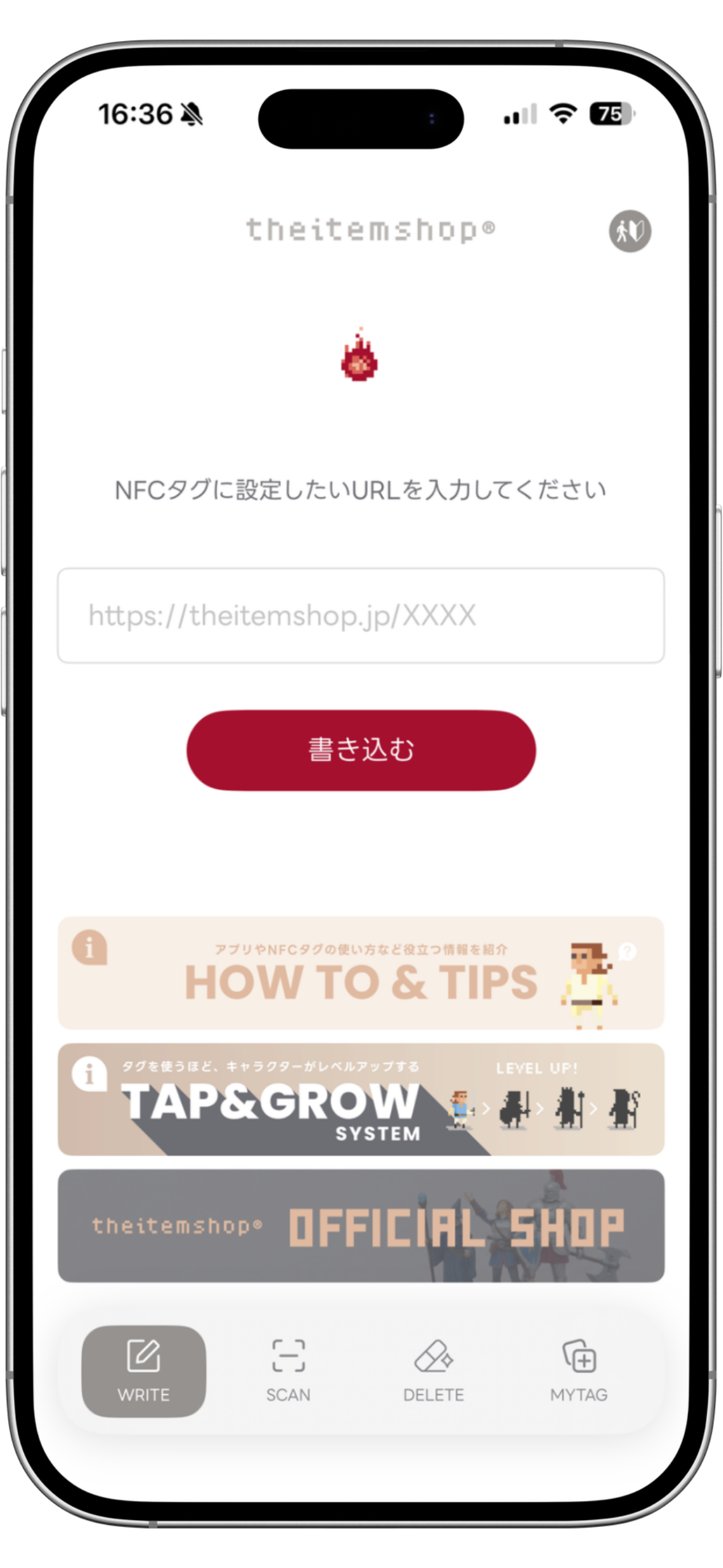
Four buttons sit along the bottom of the app. Use them to move between screens.
WRITE Write a URL to your tag
SCAN Read your tag, and check its level and settings
DELETE Clear the URL on your tag
MYTAG See the tags you're growing
You can also swipe left and right to move between all four screens.
Supported devices
iPhone only. Requires an NFC-equipped iPhone running iOS 16.6 or later. iPad is not supported, as no iPad model has NFC. An Android app is coming soon.
⚠ Where to hold the tag
The NFC antenna on an iPhone sits at the top of the device. Bring the tag close to the upper part of the screen, around the camera. If nothing happens, shift the position slightly and try again.
① Writing a URL
Here's how to set any URL you like on your tag.
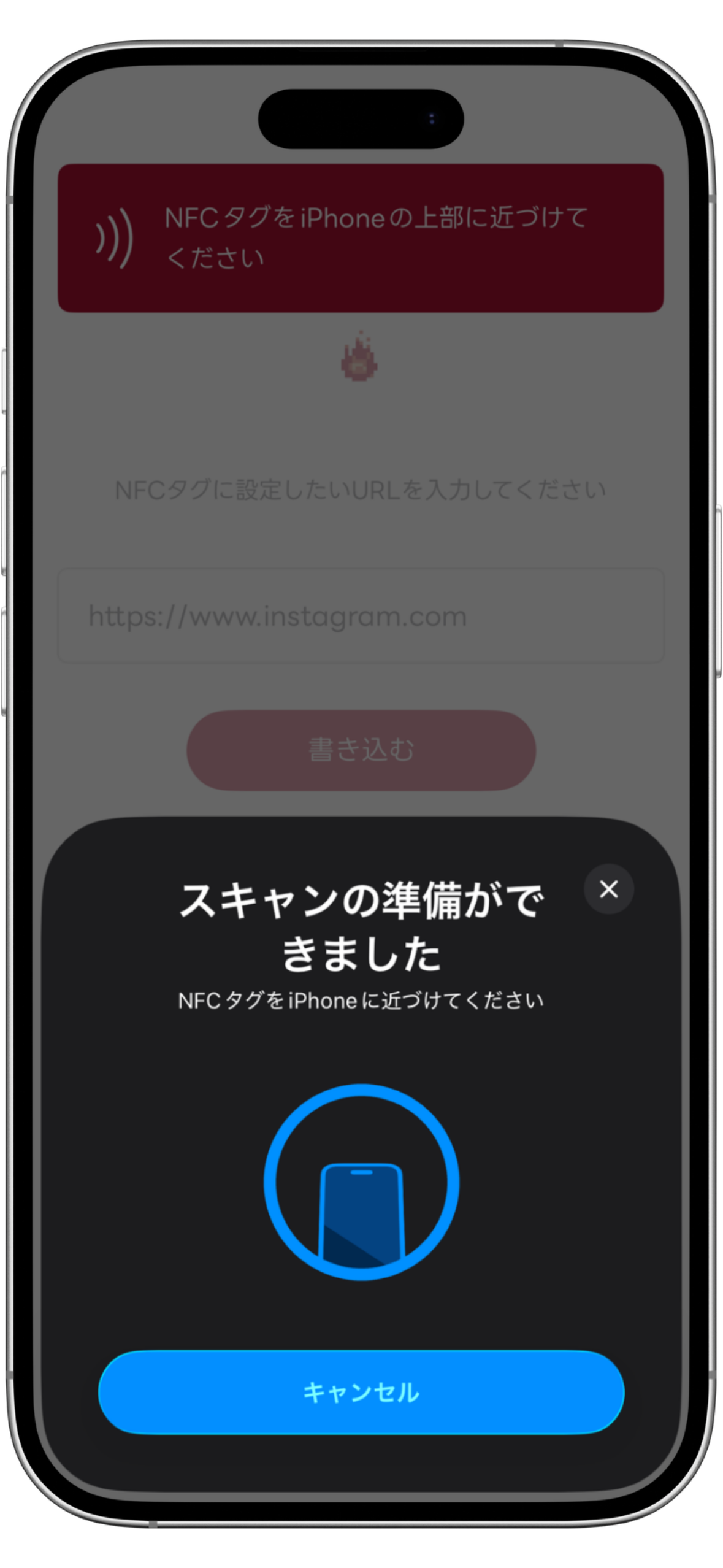
Choose WRITE at the bottom
Type a URL into the field under "Enter the URL you'd like to set on your NFC tag" (for example, https://theitemshop.jp/ )
Press WRITE
Follow the prompt ("Hold the NFC tag near your device.") and bring the tag close to the top of your iPhone
You're done when COMPLETED! appears
The first time you write to a tag
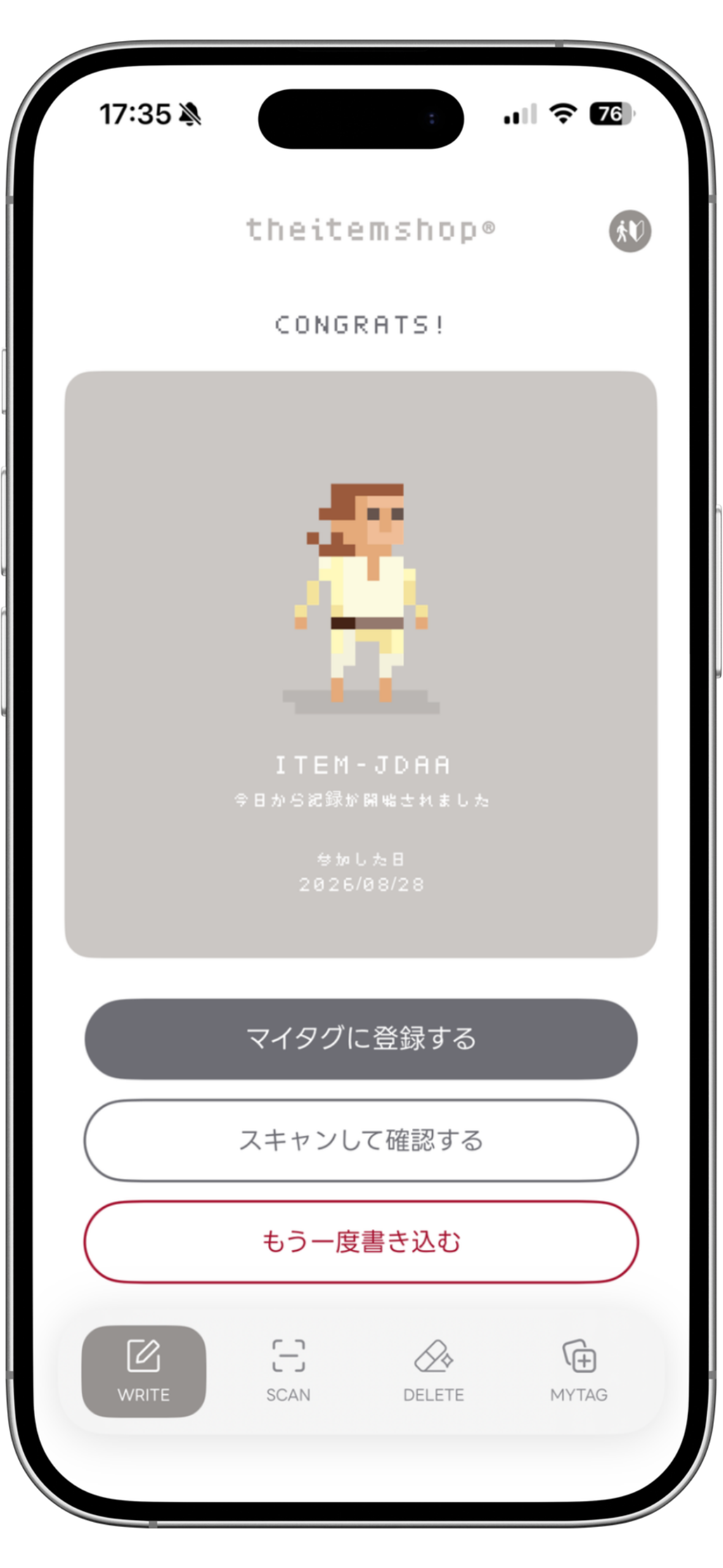
A CONGRATS! screen appears along with your character. It shows that tag's character, its codename and the day its record began. This is the starting line for that tag.
Choose ADD TO MY TAGS from there and it joins your MYTAG list.
⚠ Errors, and what to do
"Please enter the URL."
The field is empty. Enter a URL and try again.
"The URL is too long for this tag."
It exceeds what the tag can hold. Use a shortened URL.
"Couldn't find the tag. Please hold your device near it again."
The position is off. Bring it back to the top of your iPhone.
"This tag can't be written to."
Writing is locked on this tag. Please use a different one.
"It took too long. Please try again."
The tag moved away mid-read. Hold it in place a moment longer.
② Reading a tag
Check what's currently set, and how far the level has come.
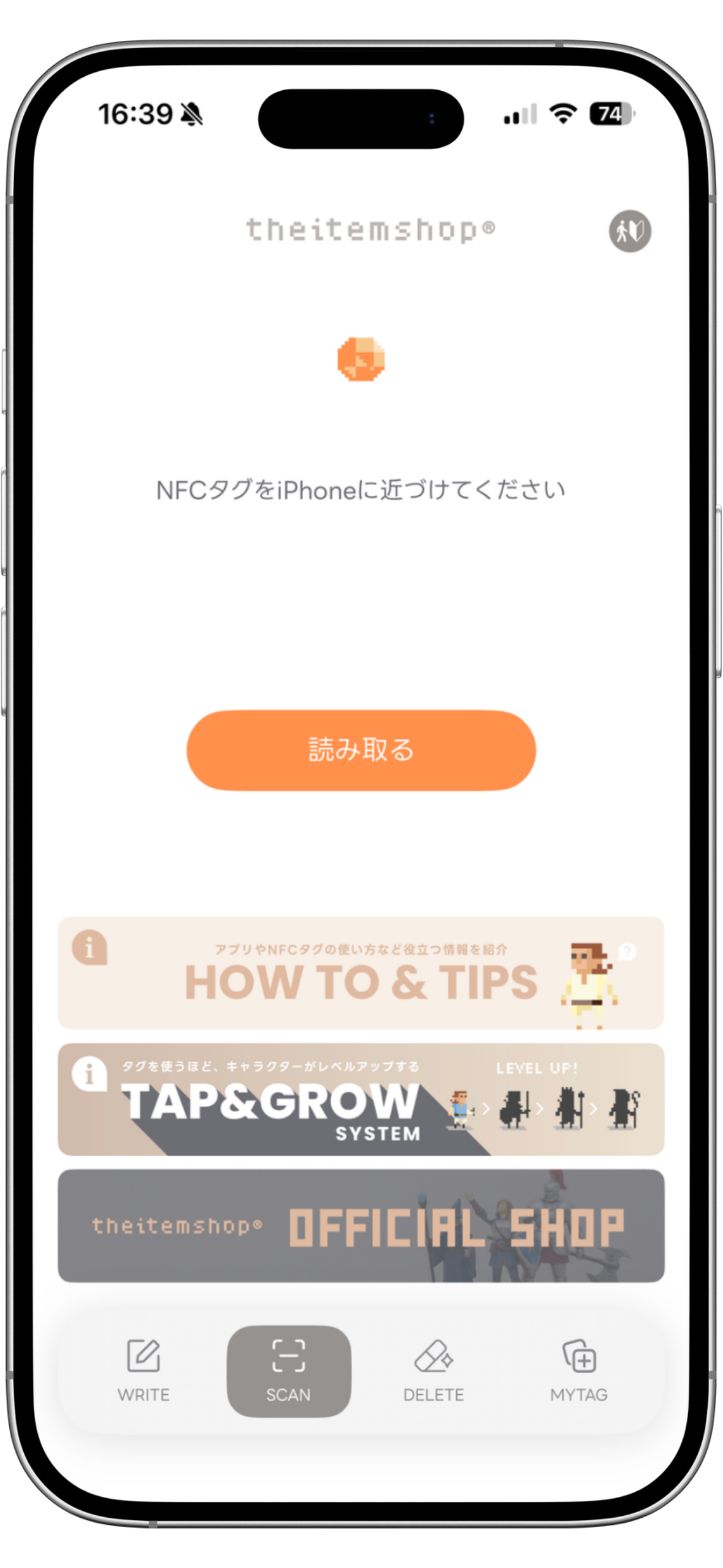
Choose SCAN at the bottom
Press SCAN
Bring the tag close to the top of your iPhone
What the result screen shows
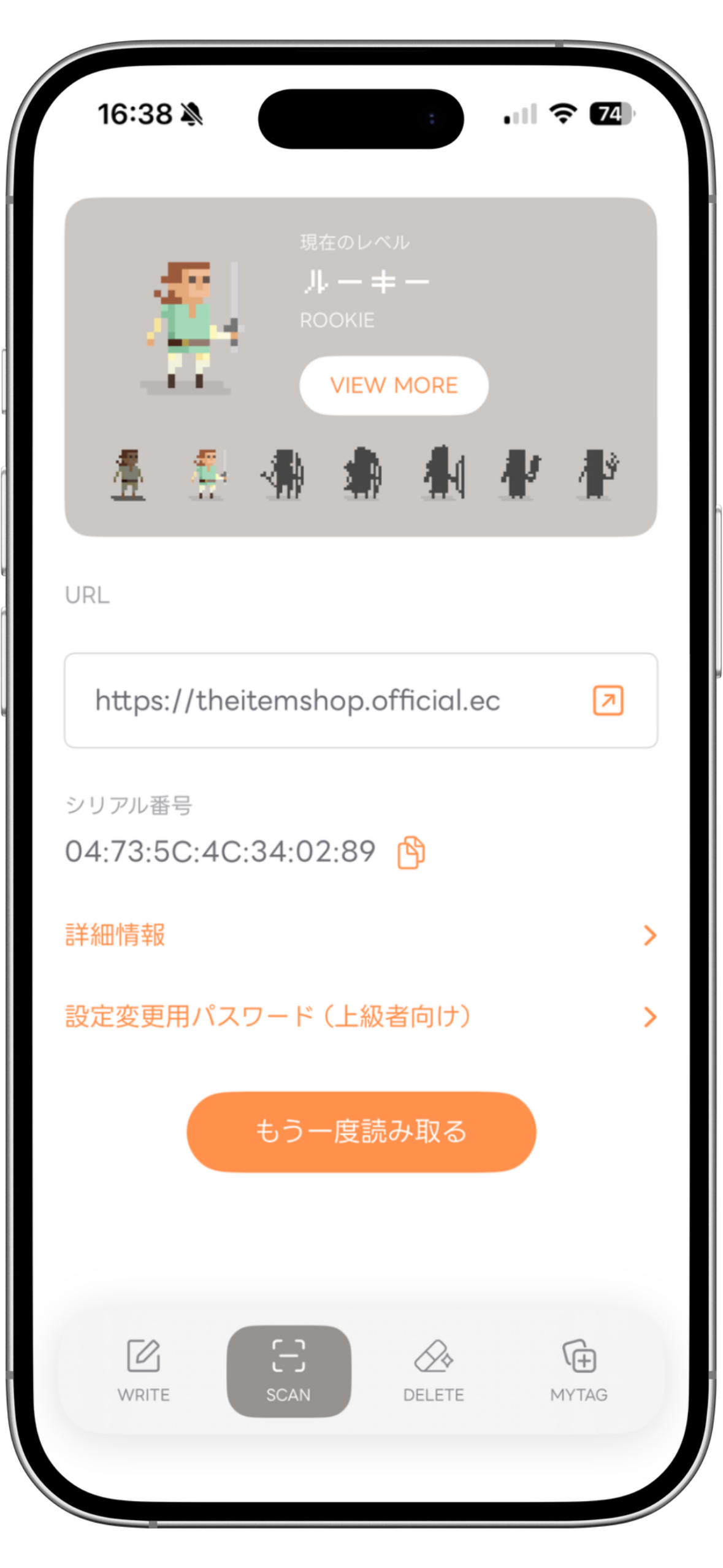
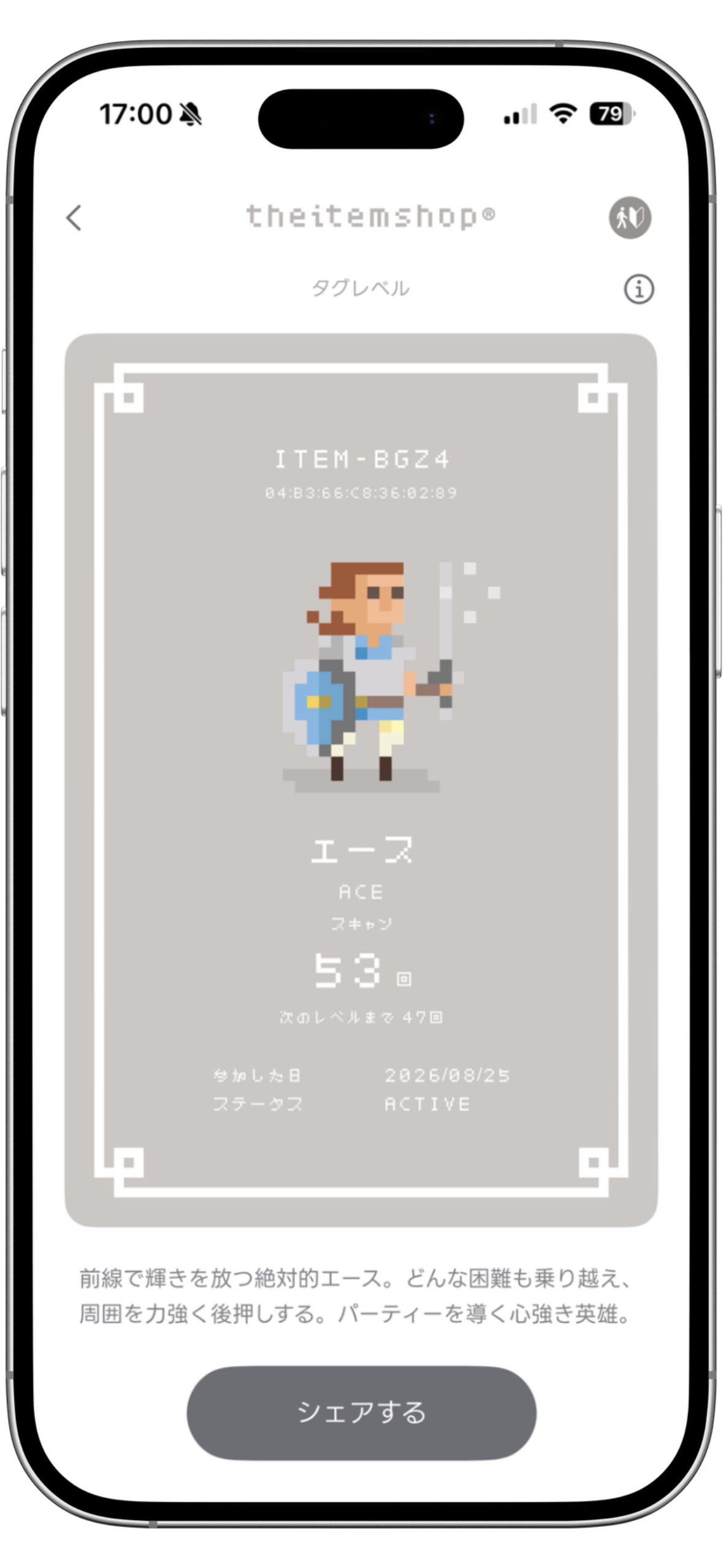
Current level
Your character and its level right now. Press the card to open the Tag level screen, where you'll find the total read count, how many taps remain to the next level, the codename, and the day the record started.
URL
The URL currently set on the tag. The icon on the right opens that page.
Serial Number
The number unique to this one tag. The copy icon puts it on your clipboard.
Details
Technical information: tag type, memory, whether it's writable. You won't normally need this.
Config Password (Advanced)
Used only when changing this tag's internal settings from another NFC app. Not normally needed.
To read another tag straight after, press SCAN AGAIN.
If "Add to My Tags?" appears
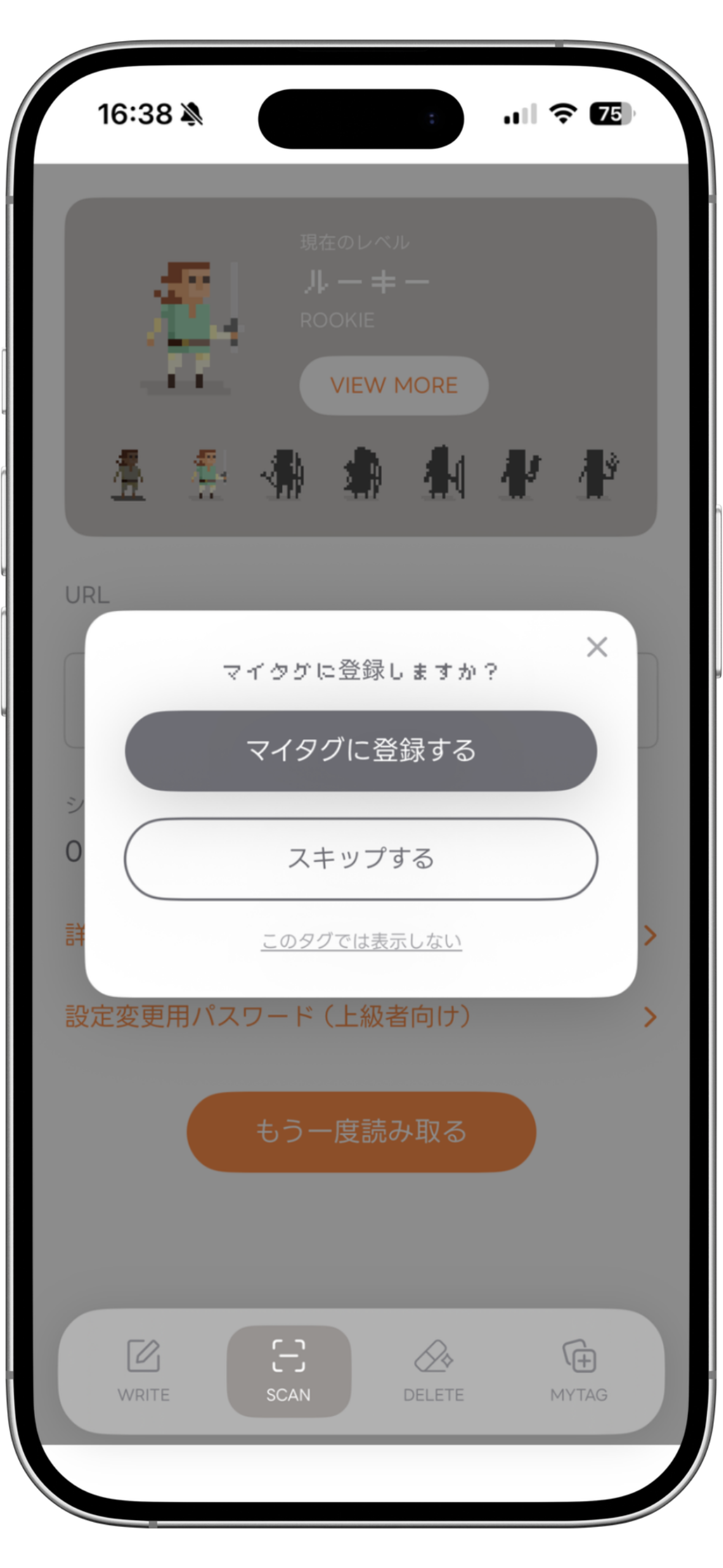
Read a tag you've already written with the official app and you'll be asked whether to add it. Choose ADD TO MY TAGS and it joins the MYTAG list. You can also add it later.
If it says INACTIVE
This tag hasn't been written from the official app yet. Tags arrive from us in this state.
The character appears, but taps aren't being counted. Choose SET A URL TO ACTIVATE to go to WRITE, and the record begins as soon as you write.
③ Clearing the URL
Remove the URL from your tag and return it to an empty state.
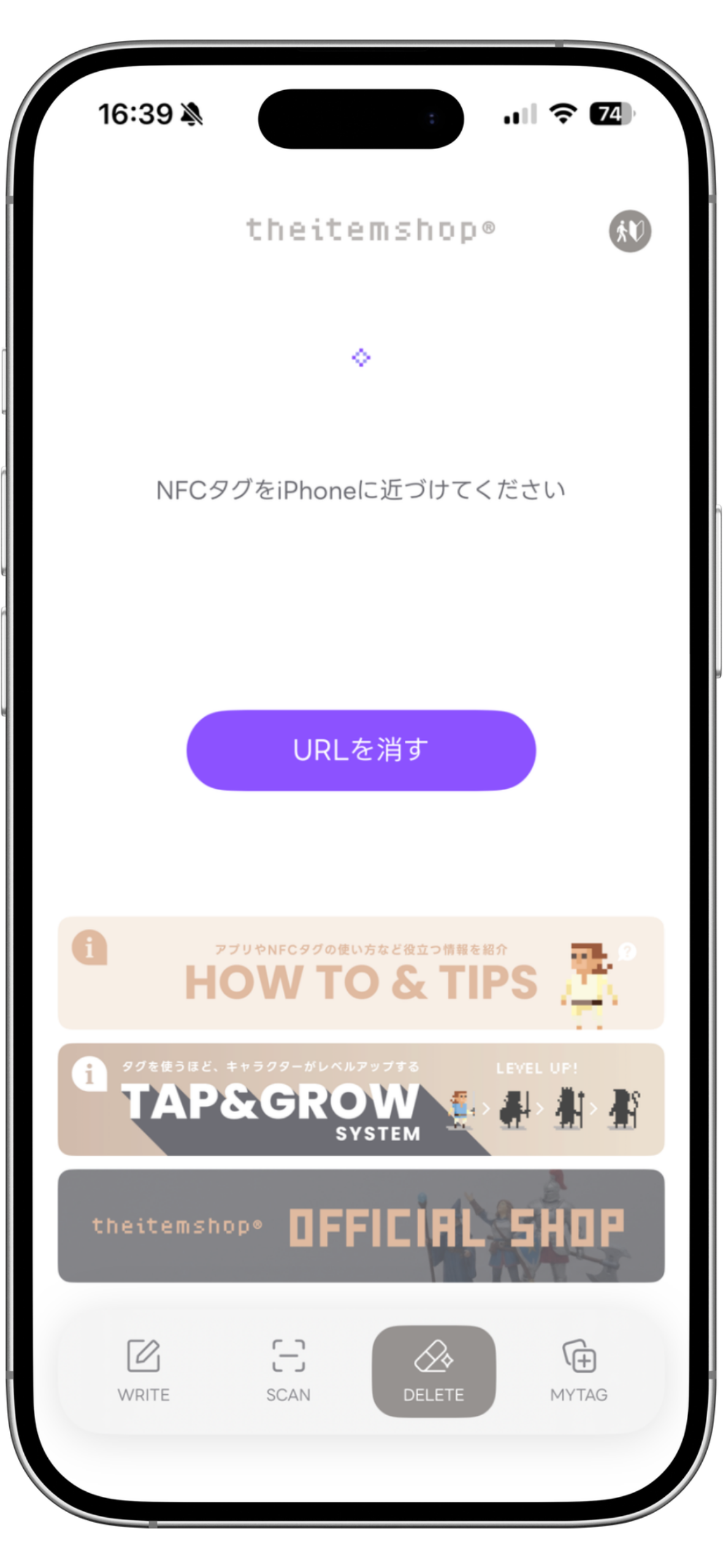
Choose DELETE at the bottom
Press DELETE URL
A confirmation appears: "Delete the URL on this tag?" Press DELETE
Bring the tag close to the top of your iPhone
⚠ Your level survives this
Only the URL goes. The read count and level stay inside the tag. The confirmation says so too: "Only the URL is deleted. Your level and read count remain."
From the screen that follows, WRITE takes you to setting a new URL, and SCAN takes you to checking the tag.
④ Seeing the tags you're growing (MYTAG)
MYTAG lists every tag you've added to My Tags. Each card shows the character, the codename, the current level and the URL you've set.
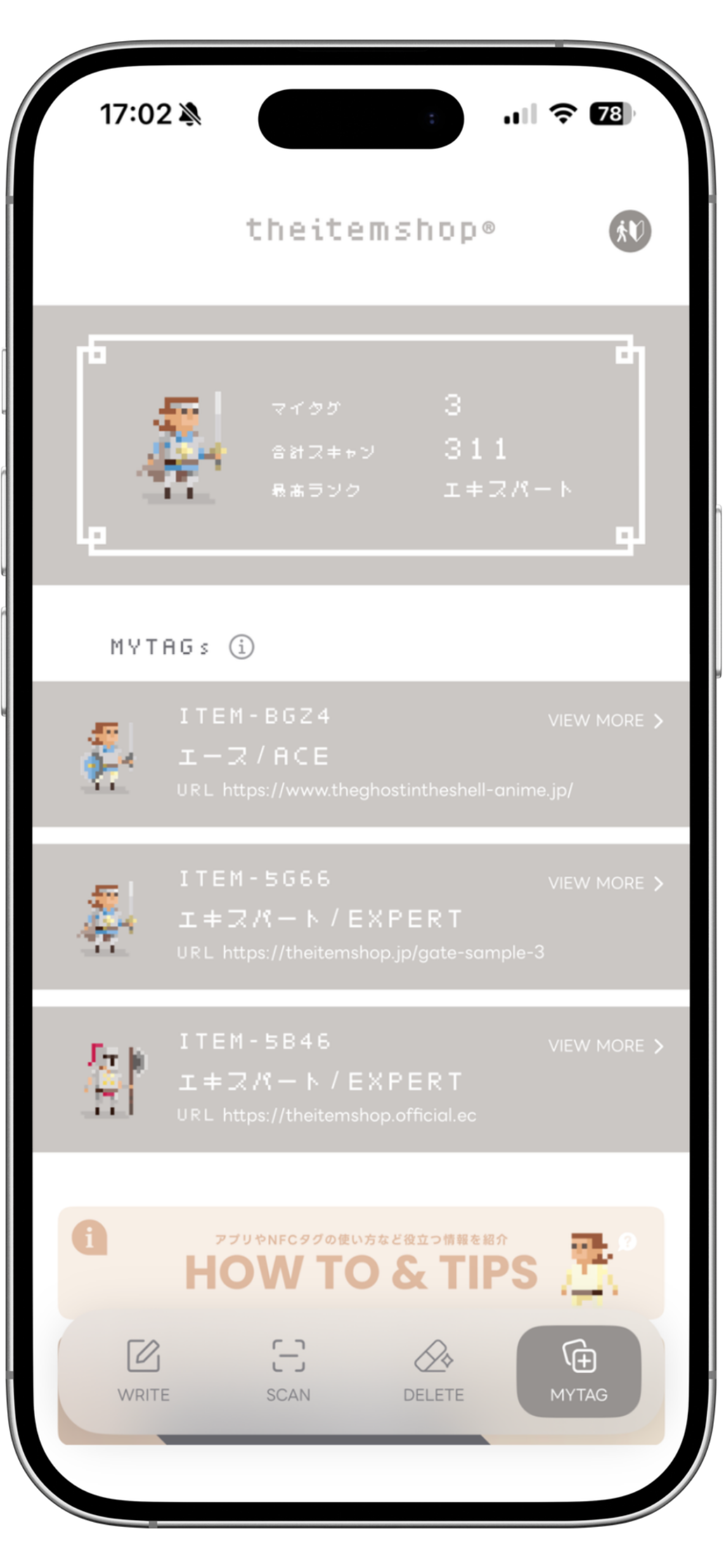
Above the list you'll find your most grown character, how many tags you've collected, and your total scans.
Press a card to open its detail screen: read count, taps remaining to the next level, and the day the record began. Press SHARE and your character becomes a card you can post or send as it is.
To take a tag off the list, press REMOVE FROM MY TAGS on its detail screen. It only disappears from the list. The read count and record are kept.
Questions we get
Can I change a URL after writing it?
Yes. Overwrite it from WRITE as often as you like. Your count and level carry over.
Can I edit the tag with other NFC apps?
For rewriting the URL, yes. Use whichever app you're used to.
What happens when I get a new phone?
Install the app on the new device and tap your tag once. Your count is right there.
I deleted the app.
Install it again and tap your tag once. Everything comes back, because the count is stored in the tag. Your character and codename are unchanged too.
Can I choose my character?
No. It's fixed per tag and never changes afterwards.
Which tags are supported?
All tags that come inside the item shop® products are supported. Among off-the-shelf tags, those with NTAG213 / NTAG215 / NTAG216 chips will work.
I'd like to understand the level system.
It's explained in full on the TAP & GROW page.
→ https://theitemshop.jp/tapandgrow-en