Japanese / English
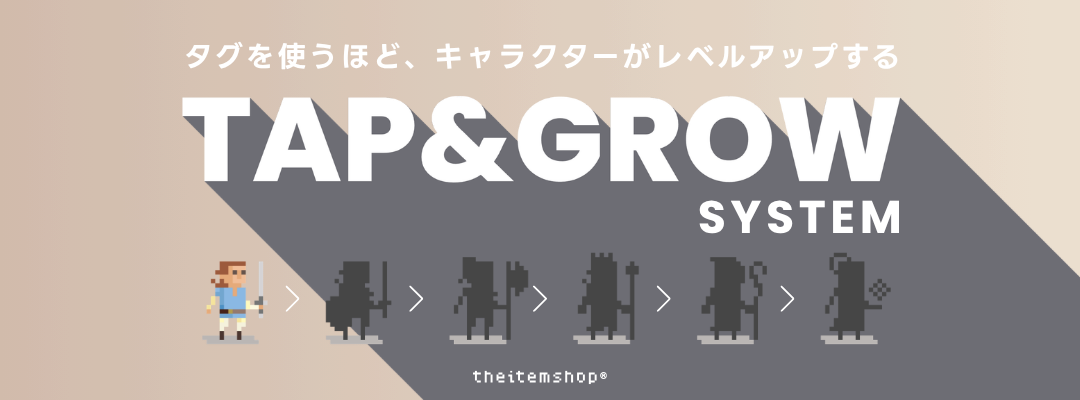
Your tag grows the more you use it
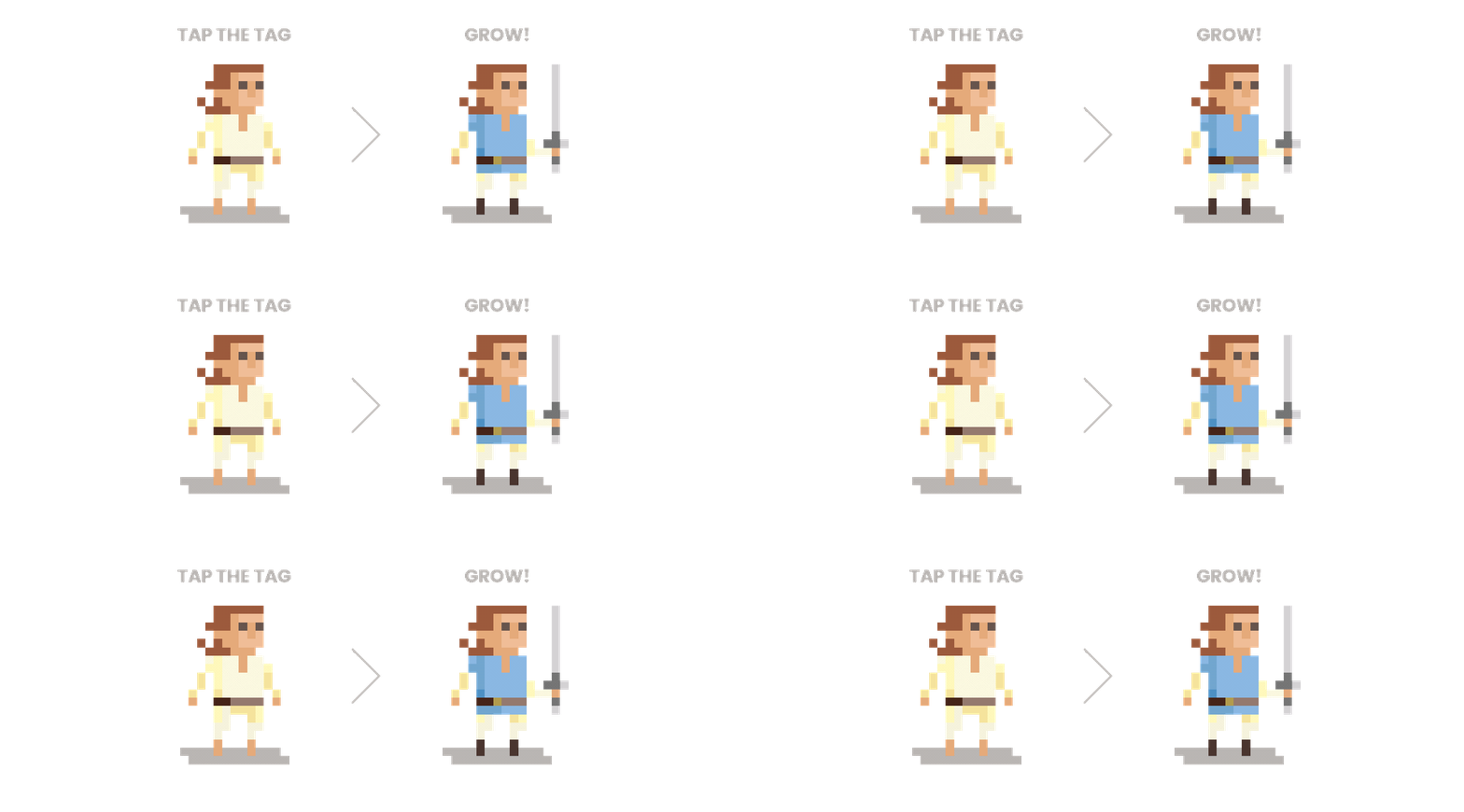
TAP & GROW is a system you can enjoy in our official app, the item shop NFC EDITOR. The more you use your tag, the more its character grows.
Setting it up takes one step: write a URL to your tag from the official app. After that, just use it the way you normally would. Each tap collects inside the tag.
Every tag carries a character of its own. Keep growing it, and that character reveals itself little by little.
TAP & GROW makes an everyday tap a little more fun. We hope you'll try it.
How TAP & GROW works
① Every tap becomes experience
Hold your tag near your phone and the counter inside the tag moves up by one. One tap, one count. Each time the number reaches a threshold, the level goes up.
The tag does the counting, not the app. So it isn't only the scans you make inside the app. Taps that simply open a page, and reads made with other NFC apps, all count too.
② Seven levels in all
| Level | Taps required |
|---|---|
| STARTER | 0 |
| ROOKIE | 5 |
| ACE | 50 |
| EXPERT | 100 |
| CHAMP | 300 |
| MASTER | 1,000 |
| LEGEND | 3,000 |
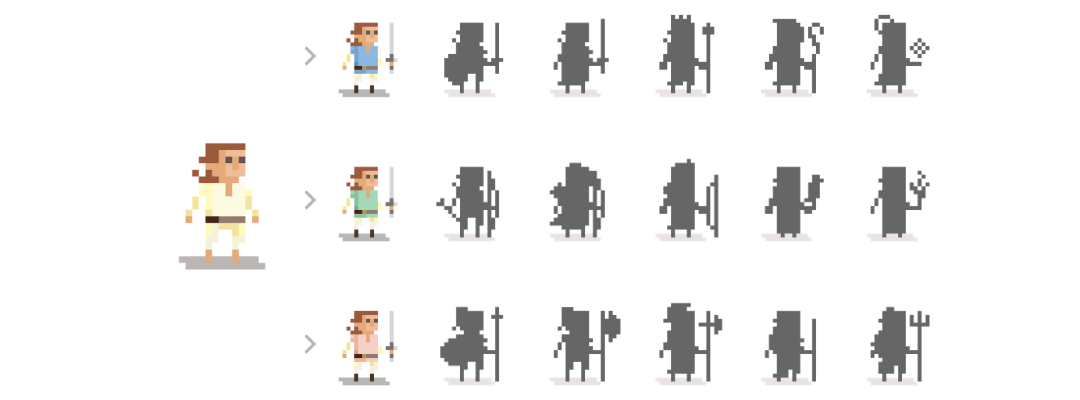
A freshly written tag starts at STARTER. Five taps gets you to ROOKIE, which comes quickly. ACE and beyond take a while.
③ Different on every tag
Each tag carries its own character, and there is more than one kind. Which one you get is decided by the unique number built into the tag. Nothing is drawn at random, and nothing is stored on a server. The character is derived from that number.
Which means:
The same tag always shows the same character, whenever you read it
Delete the app, change your phone, and the character stays the same
Read it on a friend's iPhone and you'll see that same character
A second tag gets a name of its own, and may well carry a different character
STARTER looks the same on every tag. Your own character shows itself once the tag reaches ROOKIE. That's five taps away.
(Off-the-shelf NFC tags that aren't the item shop® products always show one fixed line of characters.)
④ Rewards when you level up?
Reach certain levels and a reward is waiting. When you get there, the app tells you on the tag level screen. What it is, we'll leave for you to find out.
⑤ Change the URL, keep the count
You can rewrite the URL on your tag as many times as you like. Change where it goes and the taps you've collected carry over untouched.
The same is true if you clear the URL. Return the tag to an empty state and the level and count stay.
Get a new phone and nothing is lost either. Tap the tag with the new device and your count is right there. The number lives in the tag, not in your phone.
⑥ Other apps can edit it too
You're free to rewrite the URL from other NFC apps.
Starting the count, though, can only be done from the official app. Once the record has started, the tag's internal settings are protected by a password.
If you do want to change those settings from another app, use the config password shown on the SCAN result screen. Be careful: a wrong setting can lock the tag out of further changes for good. This is for advanced users, at your own discretion.
⑦ Your grown tags line up in MYTAG
Add a tag to My Tags and it joins the list in the app, with its character, codename, current level and the URL you've set. The more tags you have, the livelier it gets.
Above the list you'll see your most grown character, how many tags you've collected, and your total scans.
Tap a card for its detail screen: read count, how many taps to the next level, and the day the record started. Press SHARE and your character becomes a card you can post or send as it is.
Getting started
Writing a URL from the official app is all it takes to start counting.
① Download the app
The official app, the item shop NFC EDITOR, is available free on the App Store.
Note that this is an iPhone-only app. It requires an NFC-equipped iPhone running iOS 16.6 or later. iPad is not supported, as no iPad model has NFC. An Android app is coming soon.
② Enter a URL in the "WRITE" tab
Put in the page you want to open when someone taps the tag. A social profile, a shop, a portfolio, a page that stands in for your business card. Anything works.
③ Hold the tag to your phone and write
The counter starts the moment the URL is written. This is the starting line for the record.
The first time you write a URL to a tag, you'll see that tag's character, its codename and the day its record began.
④ Add it to My Tags
Choose ADD TO MY TAGS and it joins your MYTAG list.
From there, just use it as you normally would. Whenever you're curious about the count, read it from SCAN.
Good to know
A brand-new tag is still asleep
A tag straight out of the box opens its page when you tap it, but nothing is being counted yet. Read it in the app and it shows INACTIVE. Write a URL once from the official app's WRITE tab and the record begins there.
The record starts when you write
Taps made before you bought the tag, or before you wrote to it, aren't included. You start from zero.
Once started, the count can't be reset
The counter inside the tag only moves forward. There's no way to rewind it or set it back to zero. That's how the tag itself is built, and it isn't something we can change on our end either.
Levels are visible only in the official app
Tap your tag the usual way and the URL you set simply opens. No level screen in between. When you want to see your count and level, read the tag from SCAN.
Holding it there doesn't add more
One tap, one count. Keeping the tag against your phone won't move the number. Pull it away and tap again to make it two.
Your read history stays on this device
The count lives in the tag; the history of when you read it lives on your phone. Delete the app and that history goes with it.
Changing internal settings from another app will fail
Try it and you'll get an error. Nothing is broken. It's there to protect the tag. To change those settings from another app, use the config password shown on the SCAN result screen.
Very long URLs won't fit
There's a limit to how many characters a tag holds. Share links loaded with parameters sometimes don't fit.
Each tag counts on its own
If you have several tags, each collects its own taps. They aren't added together.
If something doesn't look right
The number doesn't seem to be going up
Only tags written from the official app are recording. If you haven't written to it yet, set it up from the WRITE tab. If you're sure you have, read it from SCAN to check whether the counter is active.
My character is still STARTER
Write a URL from the WRITE tab, read the tag from SCAN, then press the level card. If the Status on the Tag level screen reads ACTIVE, the counter is running. And STARTER looks the same on every tag. Your own character shows itself once the tag reaches ROOKIE. That's five taps away.
I deleted the app
Install it again and tap your tag once. Your count comes straight back, because it's stored in the tag rather than the app. Your character and codename are unchanged too. The only thing that doesn't return is the history of when you read it.
I'm switching phones
Nothing to do. Install the app on the new device, tap your tag, and your count is there.
I want to change or remove the URL
Overwrite it from WRITE any time. To clear it, go to DELETE. Either way, your level and count remain.
My URL is too long to write
Use a URL shortener. A shortened link will fit.
I got an error changing settings in another app
Rewriting the URL from another app is fine, so carry on as you were. To change internal settings from another app, use the config password shown on the SCAN result screen.
It says "Update the app to see this tag"
That's a tag from a newer series. Update the app to the latest version from the App Store and it will display.
Which tags are supported
All tags that come inside the item shop® products are supported. Among off-the-shelf tags, those with NTAG213 / NTAG215 / NTAG216 chips will work.
About privacy
Nothing we read from your tag is sent anywhere. Your count and history are kept only on your device and inside the tag.
There's no server behind this, so we have no way of knowing which pages you open or when you tap.